
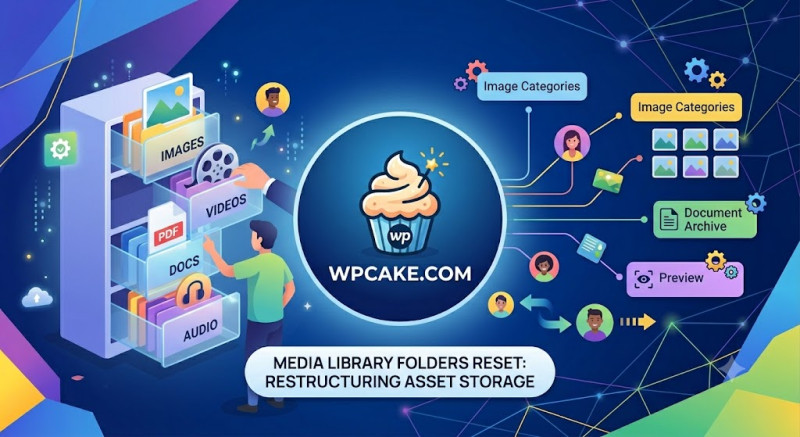
The Chaos of Year/Month Uploads
By default, WordPress stores all uploaded media in a rigid /uploads/year/month/ folder structure. While this works well for standard blogs, it quickly becomes a nightmare for portfolio sites, e-commerce stores, or large corporate platforms. If you need to locate a specific brand asset or product image from three years ago, you have to guess the exact month it was uploaded. This lack of organization can lead to duplicated files, wasted server space, and broken links when team members upload the same asset multiple times.
The Media Library Folders Reset plugin provides a lightweight, database-friendly solution. Instead of forcing you to use the default chronological folders, it lets you create logical, virtual, or physical folder structures directly inside your WordPress media library.
Configuring Your Folder Architecture
-
Installation Phase: Navigate to Plugins > Add New. Search for "Media Library Folders Reset". Click Install Now, and then follow with Activate.
-
Accessing the Asset Manager: Look for the new Media Folders option in your dashboard menu, or open your standard Media > Library view, which will now feature a new sidebar navigation panel.
-
Creating Your Logical Folders: Click on the Add Folder button in the sidebar. Create a clean structure based on your specific content needs. For example:
-
/branding/logos/ -
/products/apparel/ -
/marketing/banners/
-
-
Organizing Existing Media: To organize your files, simply select your existing images and drag them directly into your newly created folders in the sidebar interface.
Important Production Notes
Unlike heavy file manager plugins that can break image links, this plugin safely handles database references in the background. When you move an image, it updates all corresponding attachment metadata without breaking the image URLs in your existing posts.
Best Practice Advice: Before organizing a large library, it is highly recommended to run a quick database backup. Once your new folder structure is set up, encourage your content team to upload images directly into the appropriate folder. This simple habit keeps your asset library clean, organized, and easy to navigate for years to come.